
Creating your first profile
How to create a profile to group TikTok connections, rules and reports

Before connecting any TikTok Business Center, you need to create at least 1 profile in BeepMi. A profile is the "folder" where your TikTok connections live: it groups connections, automation rules, spend and reports into separate buckets.
Think of a profile as a "folder" for each client, brand or separate operation. Each profile has its own automation rules, its own TikTok connection, and metrics isolated from the others. Agencies usually create 1 profile per client. E-commerce teams create 1 profile per brand.
When to create more than 1 profile?
1 profile per client
- "Client John: Apparel"
- "Client Mary: Beauty"
- "Client Pete: Electronics"
- Each with their own rules
- Isolated reports per client
1 profile per brand/store
- "Main Store"
- "US Drop"
- "B2B Wholesale"
- Separate operations
- Different teams can use it
On the trial you can create 1 profile. The Growth plan allows 1, Scale allows 5, and Dominate allows unlimited. You can create the profile now and upgrade later without losing anything.
Step by step
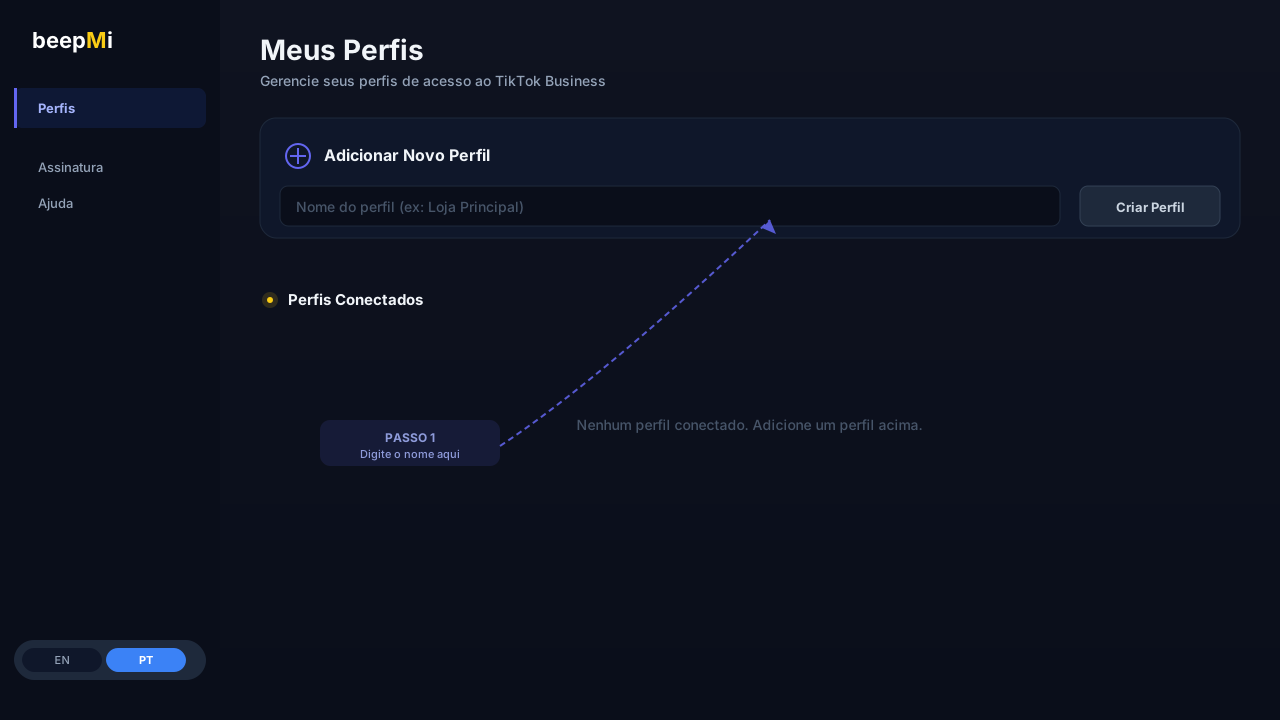
Open the "Profiles" tab in the side menu
After login, on the left menu you'll see: Profiles, Subscription, Help. Click Profiles. You'll land on the "My Profiles: Manage your TikTok Business access profiles" screen.
Find the "Add New Profile" card
Right at the top of the page there's a card titled + Add New Profile with a text field showing the placeholder "Profile name (e.g. Main Store)". That's where you name your first profile.
Type a meaningful name
Use something that'll make sense to you later. Examples: "Main Store", "US Drop Client", "Brand X". No technical rules: spaces, accents, numbers all work. Just don't use only emoji or leave it empty.
Click "Create Profile"
White/grey button at the right side of the same card. BeepMi creates the profile instantly: no email confirmation, nothing.
How do I know it worked?
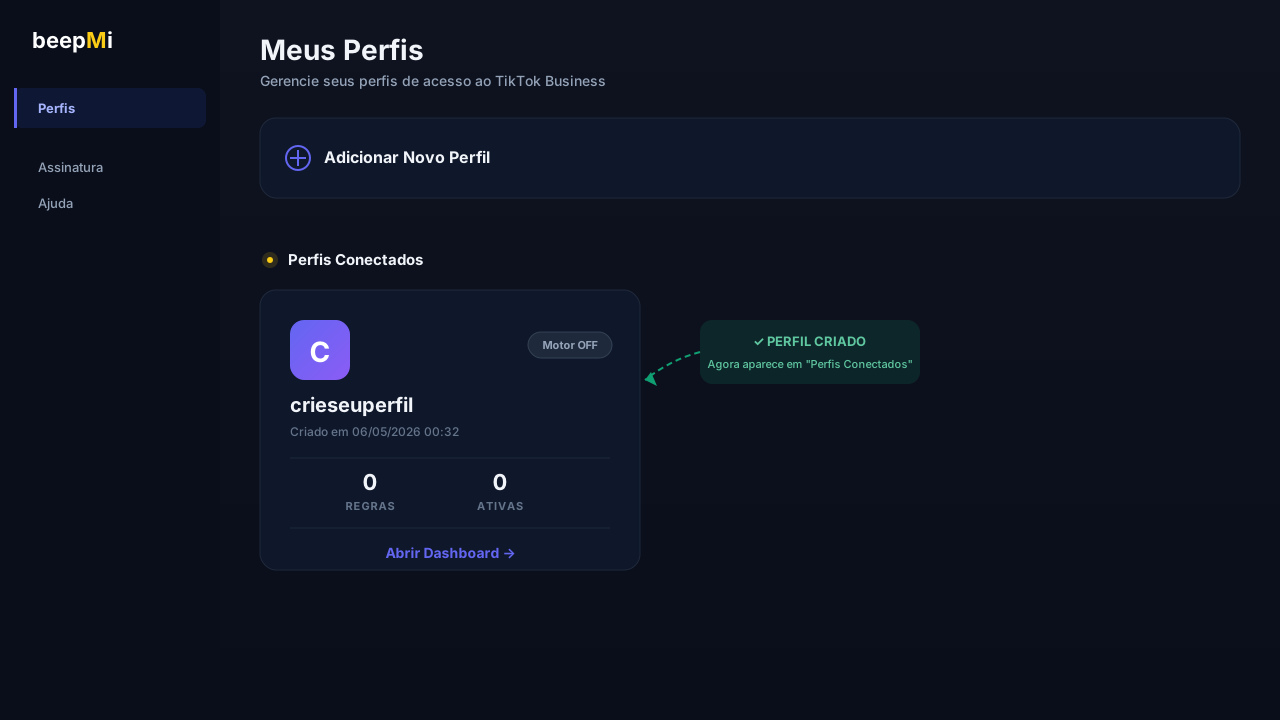
After clicking Create Profile, the card shows up below in the Connected Profiles section. You'll see:
Avatar with the name's initial
Purple/blue square with the first letter of the profile name. Same visual everywhere in the interface: makes it easy to spot the active profile.
"Motor OFF" badge
Top-right of the card. Means the automation rule engine isn't running yet (no rules created). Switches to Motor ON automatically as soon as you create the first rule.
Stats: 0 RULES / 0 ACTIVE
Counter for automation rules configured for the profile. Starts at zero: goes up as you create rules.
"Open Dashboard →" link
Click to enter the profile and see Dashboard, Ads Manager, etc. But wait: before opening, you need to connect a TikTok Business Center to the profile. That's the next step.
Can I rename or delete it later?
Click Open Dashboard, go to Profile settings (gear icon top-right). You can rename, delete or export the rules from there. Careful: deleting a profile wipes all its rules and disconnects from the TikTok BC. The operation is irreversible.
Troubleshooting
Happens if you're on trial or Growth plan (1 profile) and try to create the second one. Fix: upgrade to Scale (5) or Dominate (unlimited), or delete an old profile.
The name needs at least 2 characters and can't be only spaces/emoji. Use letters, numbers, spaces, and basic punctuation.
What's next?
With the profile created, the next step is connecting the TikTok Business Center to start importing your campaigns:
See how to connect your first Business Center inside the profile you just created.
