
How to upload a Video Upload campaign
6 steps to upload video directly (non-Spark): BC Auth or New Identity, video gallery, targeting and UTM
Complete tutorial to create Video Upload (Normal Campaign) campaigns in BeepMi via Power Editor. Unlike Spark, this format uploads the video directly to TikTok with your own identity: you need to authorize the account first.
Upload (Normal): uploads video directly. You set the identity (logo + name). No organic likes/comments. Good for mass scale, original creatives, and accounts without organic profile.
Spark Ads: uses an authorized organic post. Keeps likes, comments and creator's identity. More native look.
Before you start
You need:
- TikTok Business Center connected with campaign creation permission
- Pixel configured on the account (conversion tracking)
- MP4 video already uploaded in Creative Library (or upload now)
- Identity configured in Business Center (one of the 2 options below)
- At least 1 active advertiser in the profile
Unlike Spark (which uses the creator's profile), Upload needs an identity to post. For Upload, TikTok accepts ONLY 2 identity types: BC Auth (BC_AUTH_TT) or User ID (TT_USER).
Customized User (the "New Identity" created via "+ New identity") does NOT work for Upload. Even if the UI shows the button and creates the identity, it does not appear in the dropdown when selecting it for the campaign. This is a TikTok Marketing API limitation, not a BeepMi bug.
Setting up BC Auth identity (recommended)
This is the ideal setup for Upload. Identity tied to a real TikTok profile, with permissions on ad accounts. Do everything in TikTok Business Center before going back to BeepMi.
Connect TikTok profile in Business Center
In TikTok Business Center, go to Assets → TikTok Account → Add. Select "Authorize TikTok Account". Log in with the TikTok account you want to use as ad identity. Accept permissions.
Grant permission to all ad accounts
After connecting the TikTok account, open its profile in Assets → TikTok Account → [your profile]. Click Authorize and select all Ad Accounts that will use this profile as identity. Without this permission, the identity won't appear in the ad account's dropdown when uploading the campaign.
Add member with required permissions
Go to Members → Add Member. Add the user who will manage the campaigns (you or your team) with Operator or Admin permission on the relevant Ad Accounts. Minimum permission required to create Upload campaigns with BC Auth is BC_OPERATOR + AD_ACCOUNT_OPERATOR.
Confirm in BeepMi
Go back to BeepMi, open Power Editor, go to the Creative tab and select Normal mode. The BC Auth identity should appear in the "Identity" dropdown. If it doesn't, review steps 2 and 3 (ad account permission + member with correct role).
If you don't want to use BC Auth, you can use the TT_USER identity: direct identity from a TikTok user already linked to the ad account. Appears in the dropdown automatically without the BC Auth flow. Useful for individual or test accounts.
Choosing Manual or Smart+ + identity
In the first Normal tab, define the campaign type. At the top, pick the template: for Upload, select smart upload.
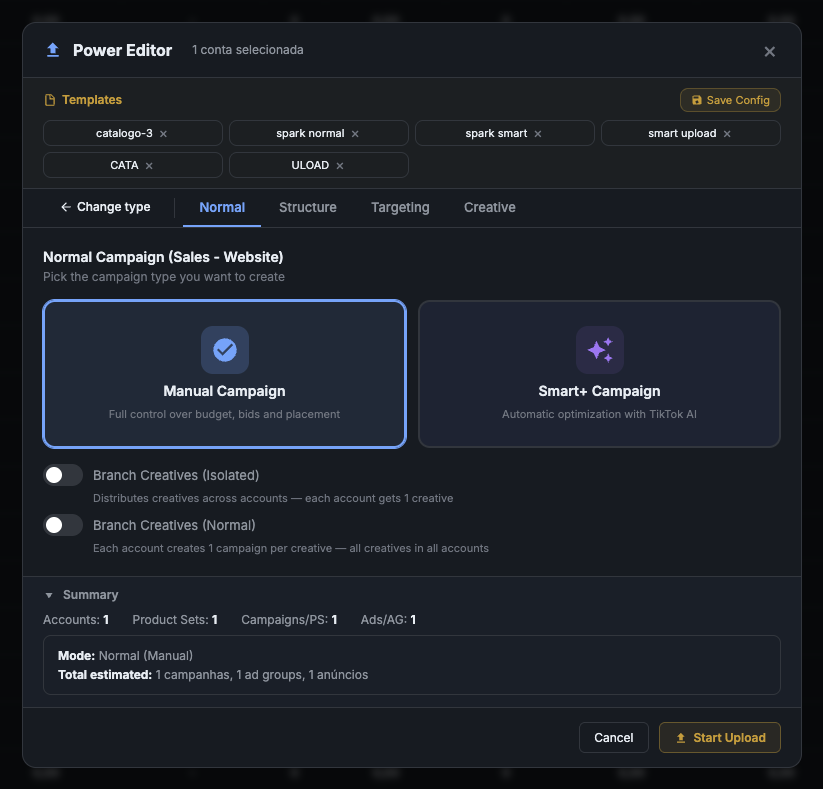
Manual Campaign: full control over budget, bids and placement. Recommended for scaling and A/B testing.
Smart+ Campaign: automatic optimization with TikTok AI. Good for quick tests.
If you have multiple videos, enable Branch. Isolated = 1 video per account. Normal = 1 campaign per video on all accounts (multiplies volume).
How many campaigns, ad groups, ads and budget
The Structure tab defines the operation skeleton.
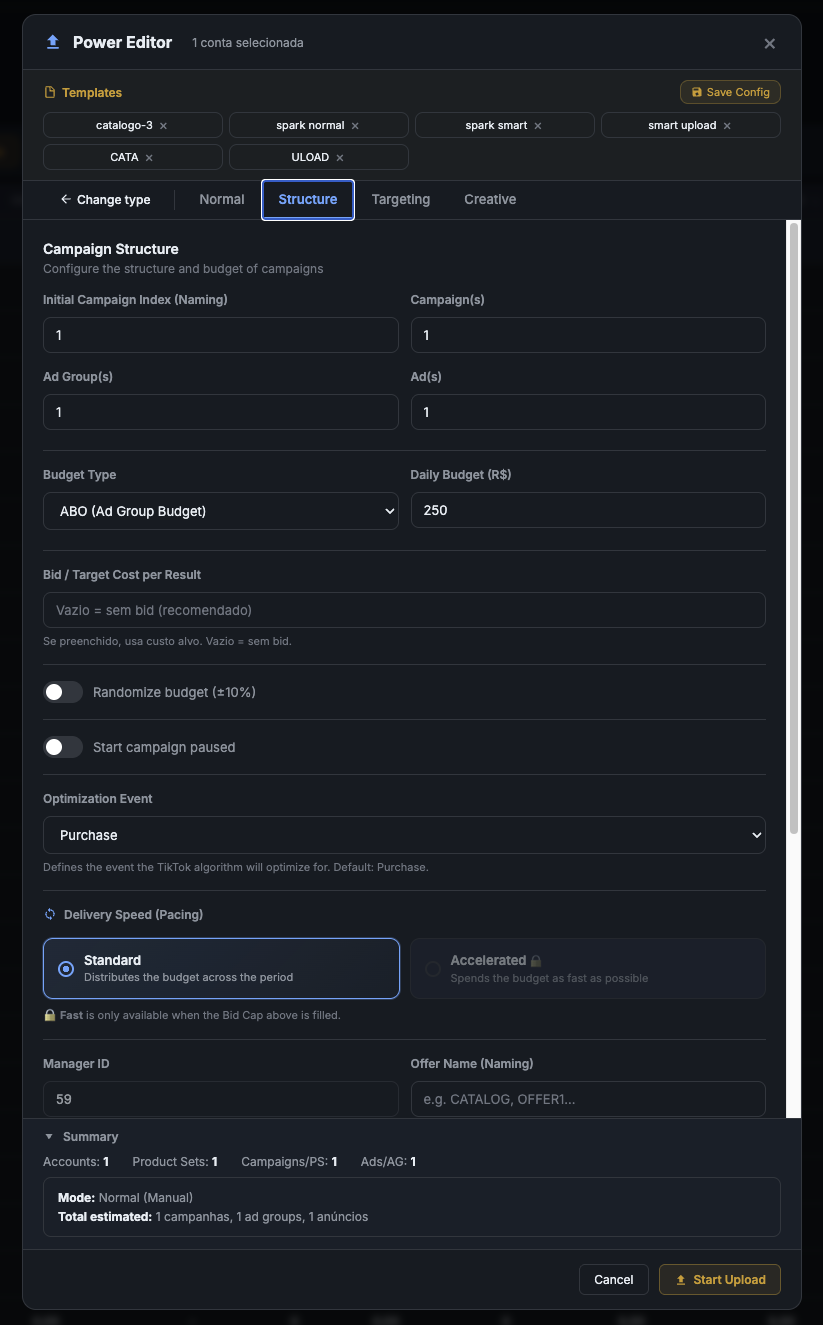
Recommended setup
| Field | Default | When to change |
|---|---|---|
| Initial Index | 1 |
Keep 1 for first batch |
| Campaign(s) | 1 |
Increase to run same structure multiple times |
| Ad Group(s) | 1 |
1 is enough in 90% of cases |
| Ad(s) | 1 |
Increase if rotating videos in same ad group |
| Budget Type | ABO |
ABO = adgroup budget. CBO = auto-distributes |
| Daily Budget | $250 |
Start with $50–$100 in tests |
| Bid / Target Cost | empty | Empty = TikTok decides (recommended) |
| Optimization Event | Purchase |
Purchase for ecommerce. Lead for capture |
Useful when uploading lots of stuff at once and you want to review before activating. Campaigns stay STATUS_DISABLE and you turn on manually in Ads Manager later.
Delivery speed, countries and languages
Continuation of Structure: defines speed, internal ID and geo targeting.
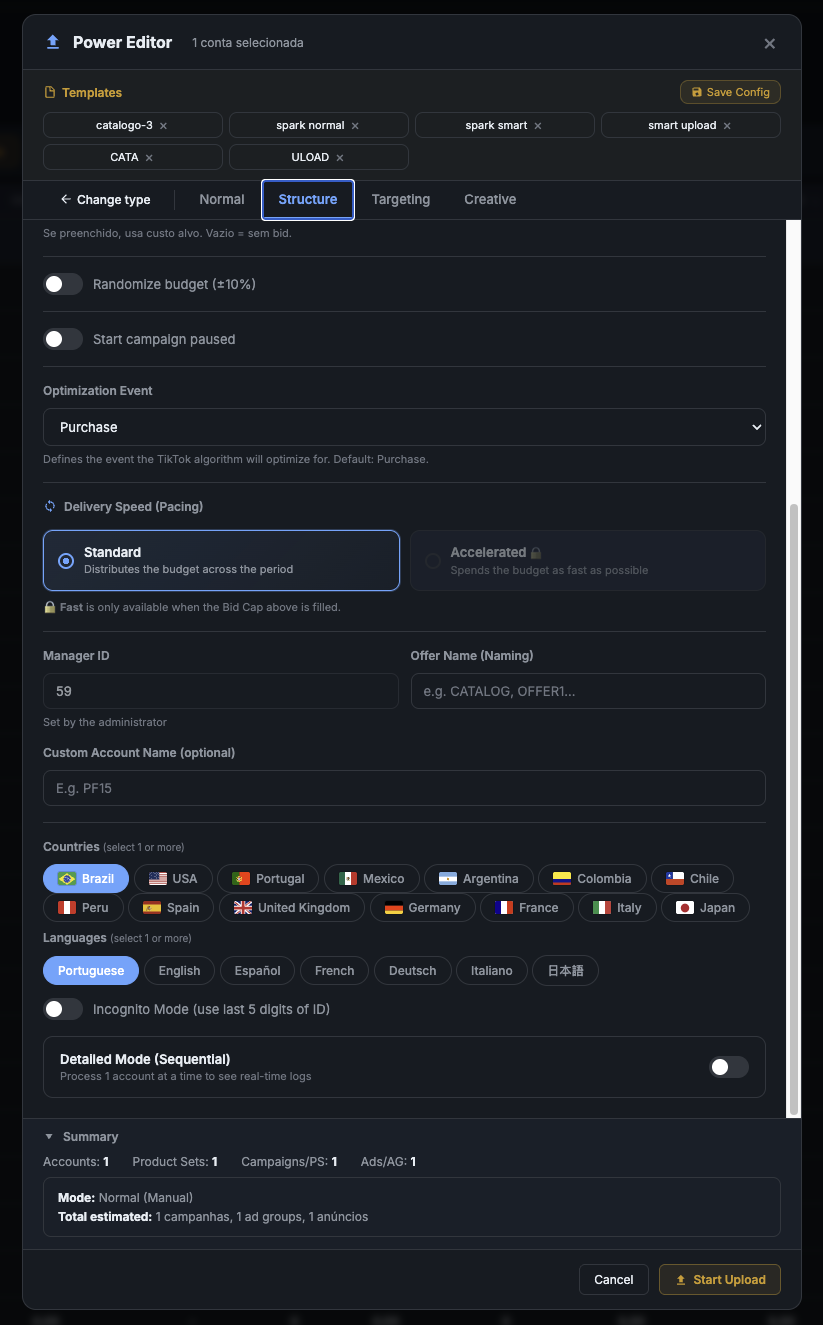
What each field does
- Delivery Speed: Standard distributes budget throughout the day (recommended).
- Delivery Speed: Accelerated consumes as fast as possible. Only available with Bid Cap filled.
- Manager ID internal identifier (set by admin). Appears in campaign name.
- Offer Name part of the naming convention. E.g.:
OFFER1,PROMO,BLACK-FRIDAY. - Custom Account Name optional label for identification.
- Countries select target countries. Brazil is default for Brazilian ecommerce.
- Languages align with target market.
Uses last 5 digits of ID instead of account name. Useful in A/B without revealing identity in the report.
Defining the audience
The Targeting tab defines who sees the ads. Keep it broad initially.
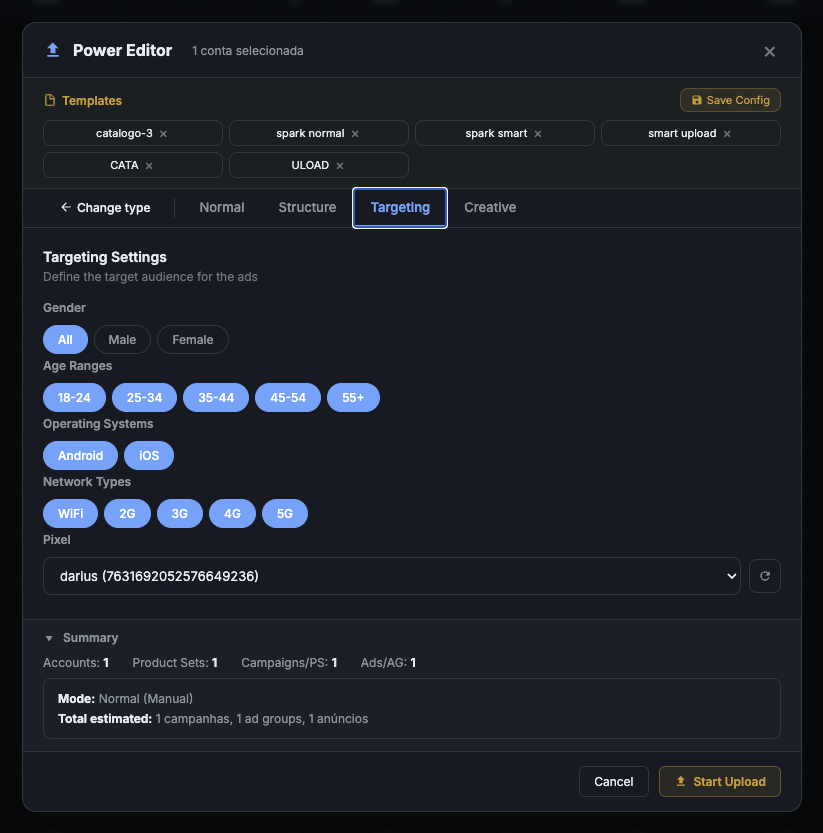
Recommended ecommerce setup
- Gender:
All: exception: explicit niche products - Age Groups:
18-24,25-34,35-44,45-54,55+(all checked) - Operating Systems:
Android + iOS - Network Types:
WiFi + 2G + 3G + 4G + 5G - Pixel: select the account's pixel (required for Purchase optimization)
If the dropdown is empty, go to Settings → Pixels and register the account's pixel. Without a pixel you can't optimize for Purchase.
The key difference of Upload
This is where Upload diverges from Spark. You need an authorized identity + video from gallery.
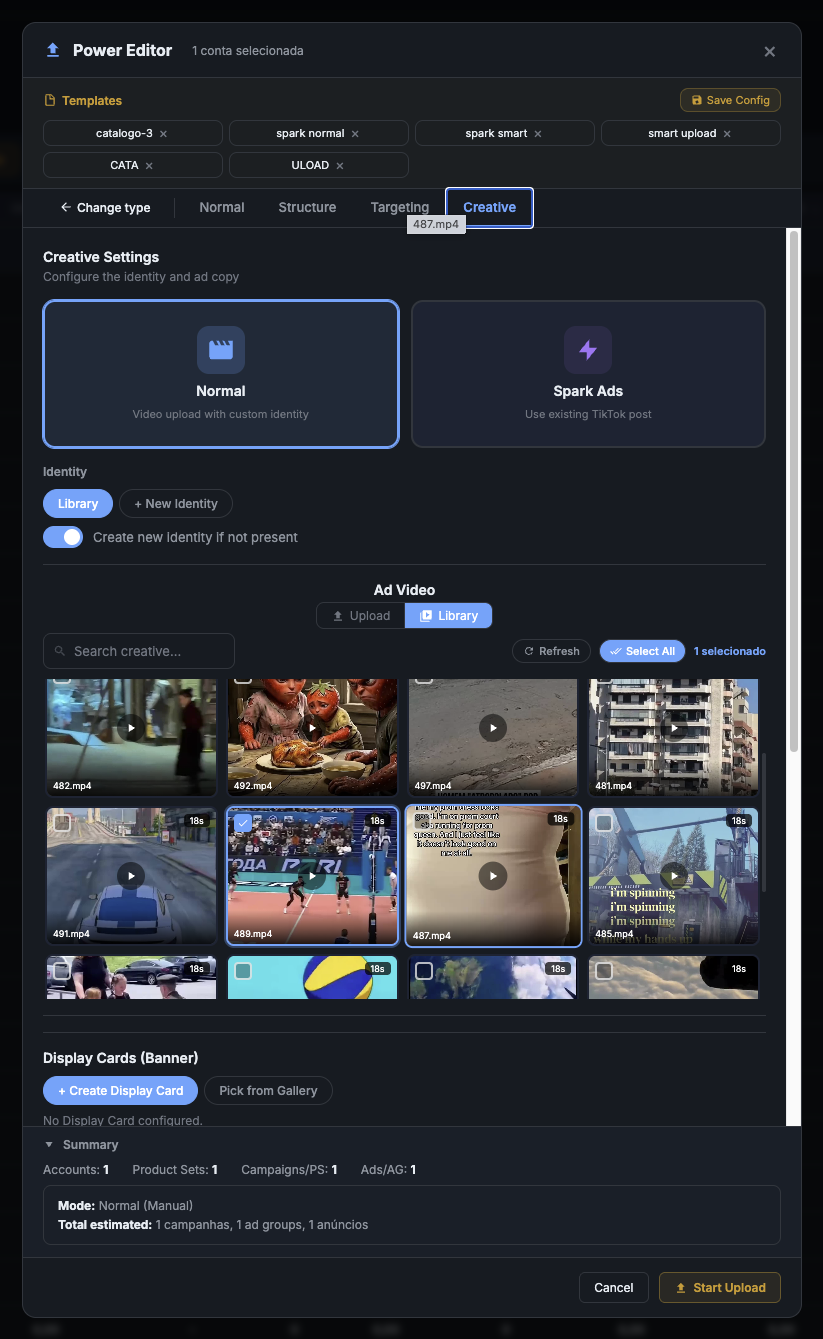
Identity: the 2 options that work
Authorize an existing TikTok account as identity for your ads via Business Center. Configure before uploading the campaign (step-by-step at the start of this article). Advantages:
- Real logo + name + TikTok profile
- Professional and native appearance in feed
- Reusable across multiple campaigns and accounts
- Posts tied to official profile (aggregated analytics)
Direct identity from a TikTok user already linked to the ad account (without BC Auth). Appears in the dropdown automatically if there's a TikTok user connected to the account. Advantages:
- Simpler setup (no BC Auth needed)
- Good for individual or test accounts
- Existing identity, nothing new to create
Even if the UI has a "+ New identity" button to create an identity with custom name + logo (CUSTOMIZED_USER type), this identity does not appear in the dropdown when selecting it for Upload. TikTok limits: for Upload, only TT_USER and BC_AUTH_TT are valid.
Ad Video
Gallery shows videos from BeepMi's Creative Library. Select 1 or more (if Branch is on).
If enabled, BeepMi automatically creates new identity when account has none. Useful for mass automation, but loses visual control. Disable if you want to approve each identity manually.
Display Cards, link, CTA, controls and UTM
Creative continuation: sets banner overlay, landing page, CTA and tracking parameters.
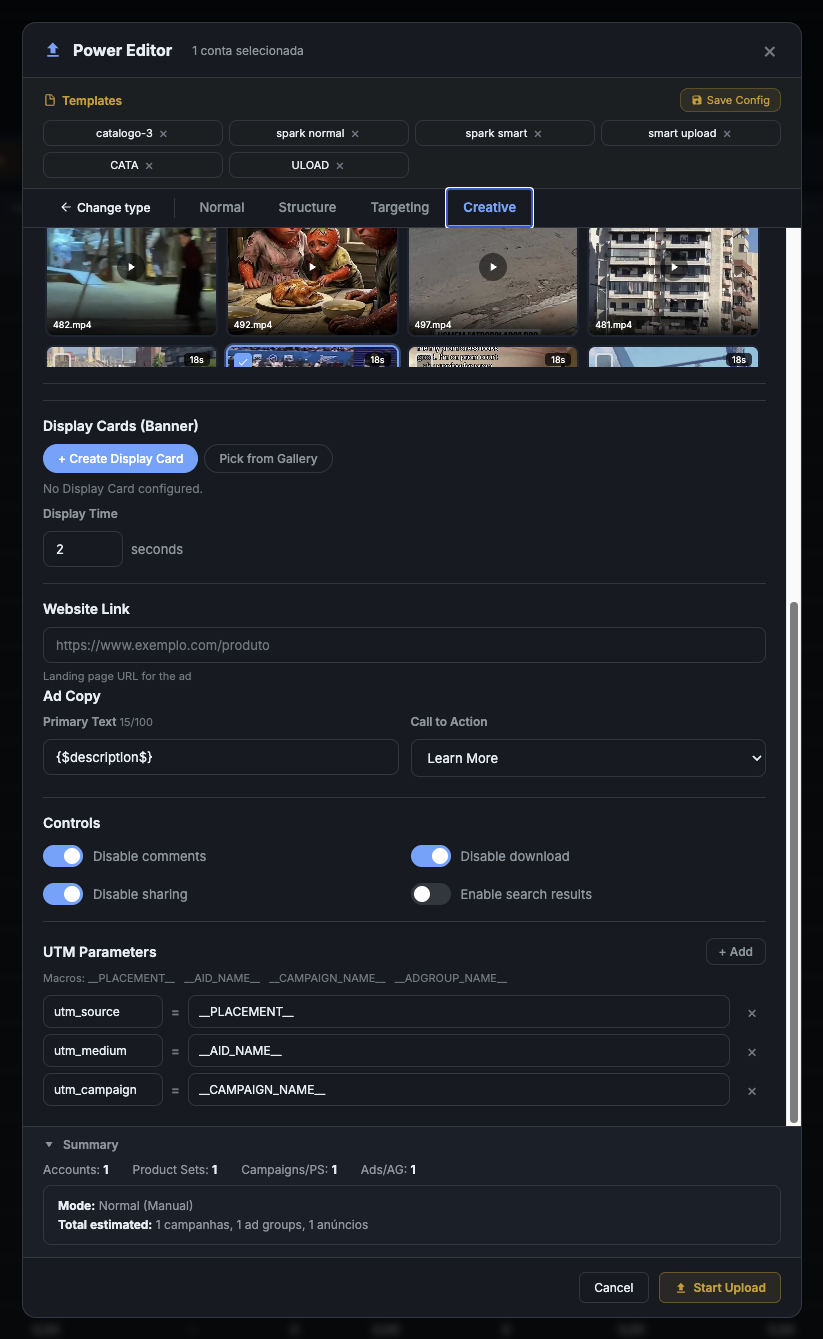
Final settings
- Display Cards (Banner): optional banner at video bottom. Default Display Time
2 seconds. - Site Link: full landing page URL. E.g.:
https://mystore.com/product?ref=tiktok - Ad Text: caption that appears with the video (max 100 chars recommended).
- Call to Action:
Learn More(ToFu),Shop Now(BoFu/retargeting),Sign Up,Subscribe.
Important controls
- Disable comments: recommended on new ads (avoids negative comments without volume)
- Disable download: protects your video
- Disable sharing: controls where the video appears
- Enable search results: only if you want the video to appear in organic search
Default UTM
utm_source     = __PLACEMENT__
utm_medium     = __AID_NAME__
utm_campaign   = __CAMPAIGN_NAME__
utm_content    = __ADGROUP_NAME__
The variables __PLACEMENT__, __AID_NAME__, __CAMPAIGN_NAME__ and __ADGROUP_NAME__ are auto-filled at runtime: they arrive in Google Analytics/Pixel with the actual campaign name.
Ready to upload
After filling all 6 steps:
- Go back to the Normal tab
- Confirm the Summary at the bottom: total campaigns, ad groups and ads
- Click Start Upload (orange button bottom-right)
- Watch real-time progress in the log
Upload is slower than Spark (~45s per ad) because it sends the video. 10 accounts × 1 video = ~7-8 min. Uploading 5 videos with Branch = ~35-40 min total.
Common errors + fix
| Error | Cause | Fix |
|---|---|---|
40044: identity not found |
Account without authorized identity | BC Auth or enable "Create new identity" |
40016: pixel not found |
Pixel not selected in Step 4 | Go back to Targeting and pick the pixel |
Video format not supported |
MP4 outside TikTok standard | Use H.264, max 60s, max 500MB, vertical 9:16 |
Identity creation failed |
Invalid logo/name in "New Identity" | Logo: PNG/JPG square, min 100×100px |
Campaign creation failed |
Insufficient BC balance | Top up Business Center |
| Stuck at "Processing..." | TikTok rate limit | Wait 1 min, BeepMi auto-retries |
Next steps
- How to upload Spark Ad: format with authorized organic profile
- Model 1 vs Model 2: campaign visualization in Ads Manager
- Automation Rules: automate pause/scaling